Configuration
There are two ways to connect an MCP client to the Bugsee MCP server. Pick whichever your client supports — both reach the same tools and the same data your account can already see.
- OAuth 2.1 — paste a single URL (
https://api.bugsee.com/mcp) into the client. The client opens a browser, you sign in to Bugsee, approve the connection once, and the client receives a scoped, rotating access token. No long-lived secret lives on the user's machine. Recommended for any client that supports it. - Personal access token — generate a token from the Bugsee dashboard and paste a URL that embeds it (
https://api.bugsee.com/mcp/<token>) into the client config. Use this for clients that don't yet support OAuth, or for unattended setups (CI agents, scripts).
The base URL https://api.bugsee.com/mcp is the same for both flows; only the auth differs.
The token-embedded form (/mcp/<token>) carries credentials in the URL. Anyone who obtains that URL gets the same access to your Bugsee data as you do. Never share it, never commit it to a repository, and prefer OAuth where the client supports it.
Option 1: OAuth (recommended)
Most MCP clients now support OAuth. The first time the client calls the Bugsee MCP server it discovers the OAuth metadata (/.well-known/oauth-authorization-server and /.well-known/oauth-protected-resource/mcp), registers itself via Dynamic Client Registration (RFC 7591), and walks the user through an interactive sign-in.
To connect:
- In your MCP client, add a new MCP server with the URL
https://api.bugsee.com/mcp. - The client opens your browser and prompts you to sign in to Bugsee.
- Bugsee asks you to confirm the connection and shows the application name supplied by the client.
- Approve. The client receives an access token (typically valid 1 hour, refreshed silently) and is now connected.
The default granted scope is mcp:read — read-only access to your Bugsee account. A client may additionally request mcp:write, which unlocks create_application; when it does, the consent screen shows the request and you can narrow the approval back to mcp:read before approving. See Security for details on the OAuth flow, scopes, and revocation.
Managing OAuth sessions
You can view and revoke active OAuth sessions from the Bugsee dashboard at My Integrations. Each session shows the connecting application's name, the date it was authorized, and a button to revoke. Revoking immediately invalidates both the access token and any pending refresh token; the client will need to walk through sign-in again.
Option 2: Personal access token
For clients that don't yet support OAuth, create a long-lived personal access token from the dashboard.
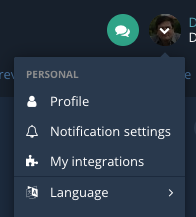
- Open My Integrations in the Bugsee user menu, or navigate to it directly: app.bugsee.com/#/settings/user/integrations.
- Click New token, give it a recognizable name (e.g.,
home-laptop-cursor,ci-bot). - Copy the resulting URL —
https://api.bugsee.com/mcp/<token>. The token is shown once. - Paste that URL into your MCP client (see per-client snippets below).
Personal tokens do not expire on their own. Revoke them from the same page when no longer needed.
Per-client setup
The URL you paste depends on which auth flow you chose. Replace <MCP-URL> below with either:
- OAuth:
https://api.bugsee.com/mcp - Personal token:
https://api.bugsee.com/mcp/<your-token>
Claude Desktop
Via Connectors (recommended, OAuth):
- Open Claude Desktop.
- Go to Settings → Connectors.
- Click Add and paste
https://api.bugsee.com/mcp.
Via JSON config (token-bearing URL or mcp-remote wrapper if OAuth isn't yet supported in your Claude version):
-
Settings → Developer → Edit Config to open
claude_desktop_config.json. -
Add:
{"mcpServers": {"bugsee": {"command": "npx","args": ["-y","mcp-remote","<MCP-URL>"]}}} -
Restart Claude Desktop.
The JSON path requires Node.js (specifically npx) on your machine. If npx lives outside the default $PATH (e.g., under asdf), use the absolute path returned by asdf which npx instead of bare npx.
Cursor
Automatic: The My Integrations dialog in the Bugsee dashboard generates a one-click cursor:// install URL for personal-token connections.
Manual:
-
Settings → Cursor Settings → Tools & MCP.
-
Click New MCP server and add:
{"mcpServers": {"bugsee": {"url": "<MCP-URL>"}}}
Windsurf
-
Settings → Windsurf Settings → Cascade → MCP Servers → View raw config.
-
Add:
{"mcpServers": {"bugsee": {"serverUrl": "<MCP-URL>"}}}
Visual Studio Code (GitHub Copilot Chat)
- Open the Command Palette (
Cmd/Ctrl + Shift + P). - Run MCP: Add Server.
- Choose HTTP (HTTP or Server-Sent Events) and paste
<MCP-URL>.
Manual config equivalent (.vscode/mcp.json or user settings):
{
    "servers": {
        "bugsee": {
            "type": "http",
            "url": "<MCP-URL>"
        }
    }
}
VS Code supports OAuth; paste the bare https://api.bugsee.com/mcp URL and it will handle the handshake.
Cline
- Click the Cline icon in the VS Code sidebar.
- From the dropdown, choose MCP Servers → Remote Servers.
- Enter a server name (
bugsee) and<MCP-URL>. - Click Add Server.
Zencoder
-
Go to Agent Tools → Add Custom MCP.
-
Name the server
bugseeand paste:{"mcpServers": {"bugsee": {"url": "<MCP-URL>"}}} -
Click Install.
Antigravity
-
In the Agent Panel, open the
...menu. -
Choose MCP Servers → Manage MCP Servers → View raw config.
-
Edit
mcp_config.json:{"mcpServers": {"bugsee": {"serverUrl": "<MCP-URL>"}}} -
Restart Antigravity.
Other MCP clients
The Bugsee MCP server uses the standard HTTP transport and announces its OAuth metadata via RFC 8414 well-known endpoints. Any MCP client that follows the spec should be able to connect — paste the base URL and either let the client run the OAuth handshake, or fall back to the token-bearing URL form.
If you connect a client we haven't listed, we'd love to hear about it. File an issue or reach out via the support chat.