Azure DevOps Integration
Authentication
Supported authentication methods
Personal token
To proceed with this authentication type you need to obtain a personal access token from Azure DevOps. Steps below will instruct you how to do that.
Sign in to your Azure DevOps organization (https://dev.azure.com/{yourorganization}).
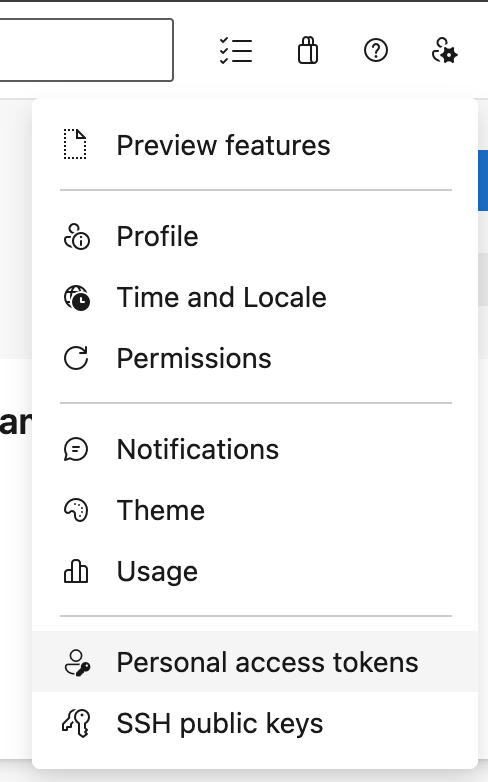
Click the user settings icon in the top right corner, then select Personal access tokens.
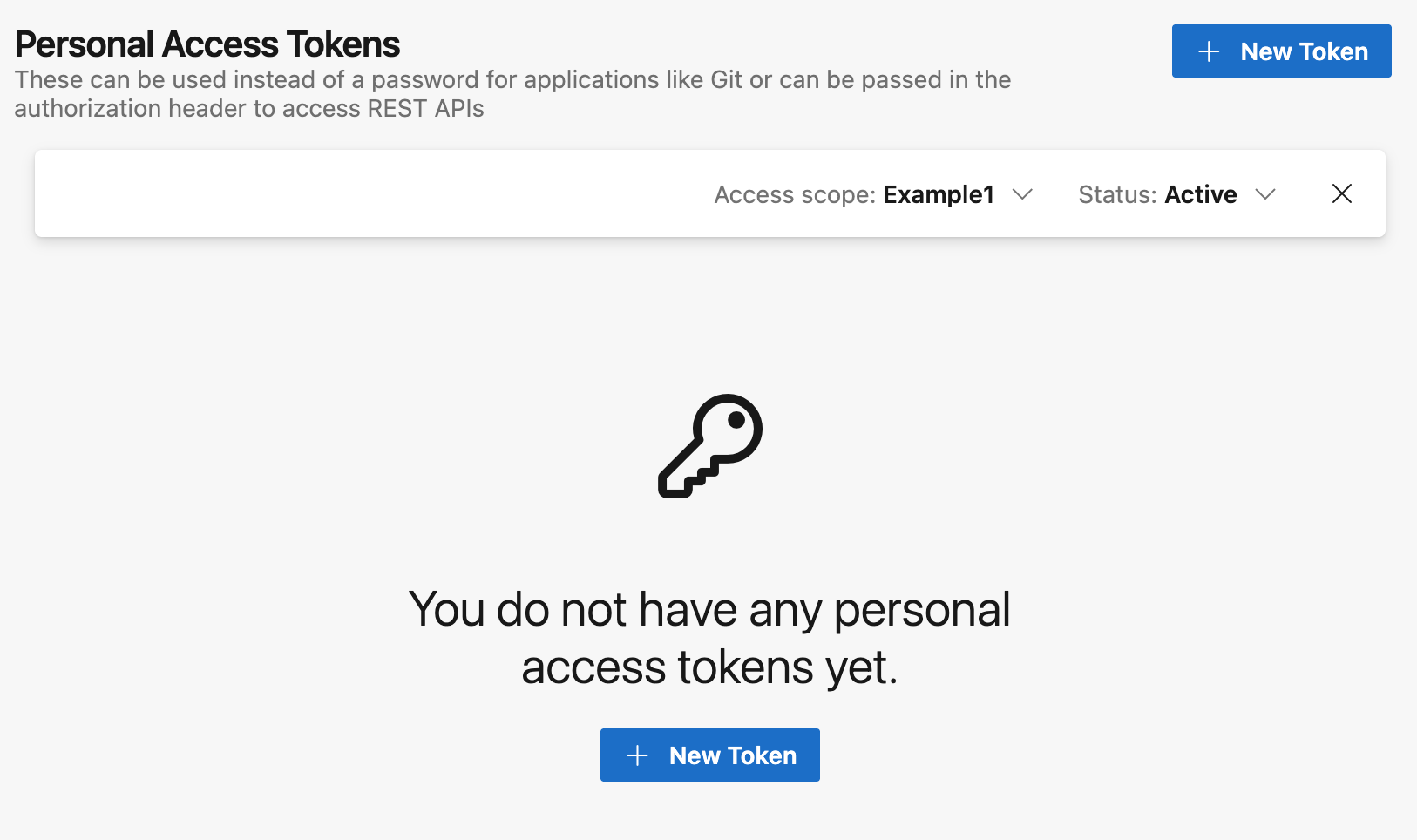
Click + New Token to create a personal access token.
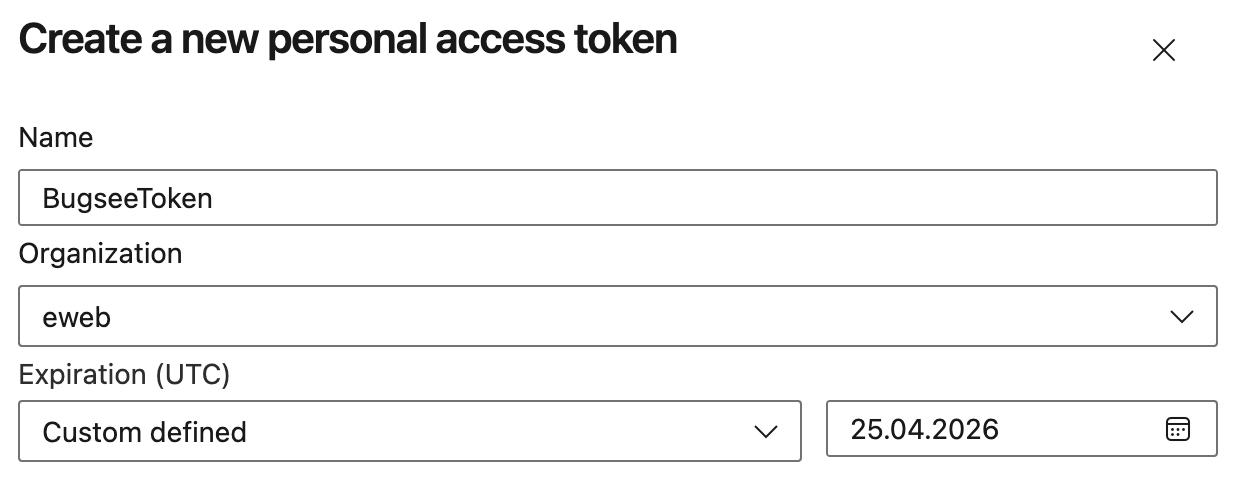
Name your token, select the organization, and set an expiration period.
Under Scopes, select Show all scopes and enable Project and Team (Read) and Work Items (Read & write).


Click Create. Make sure to copy the token — you won't be able to see it again.
Now, when you've obtained a token, let's configure the integration in Bugsee.
Provide the organization URL (e.g. https://dev.azure.com/{yourorganization}) and paste the generated token.
Configuration
There are no specific configuration steps for Azure DevOps. Refer to configuration section for description about generic steps.
Custom recipes
Bugsee can accommodate all the customizations required for your Azure DevOps instance with the help of custom recipes. This section provides a few examples of using custom recipes with Azure DevOps. For basic introduction, refer to custom recipe documentation.
Setting tags field
By default Bugsee creates and updates Azure DevOps bugs with Bugsee issue labels as Azure DevOps tags. But labels list can be overridden inside your custom recipe. For example you can add some new label (Azure DevOps tag) to existing ones:
function create(context) {
	// ....

    return {
    	// ...
    	labels: [...issue.labels, "My awesome tag"]
    };
}

function update(context, changes) {
	const result = {};
	// ...

    if (changes.labels) {
        result.labels = [...changes.labels.to, "My awesome tag"];
    }

	return {
        issue: {
            custom: {}
        },
        changes: result
    };
}
Setting custom fields
Custom fields for Azure DevOps must be set as an array of objects ({ op, path, value }) inside the "fields" attribute, like shown below:
function create(context) {
	// ....

    return {
    	// ...
    	custom: {
    		fields: [
                {
                    op: 'add',
                    path: '/fields/System.Reason',
                    value: 'New task'
                }
            ]
    	}
    };
}