iTop integration
Authentication
Supported authentication methods
Basic authentication
No custom configuration required in iTop for this type of authentication. The iTop user account you use must have sufficient permissions to create tickets via the REST API.
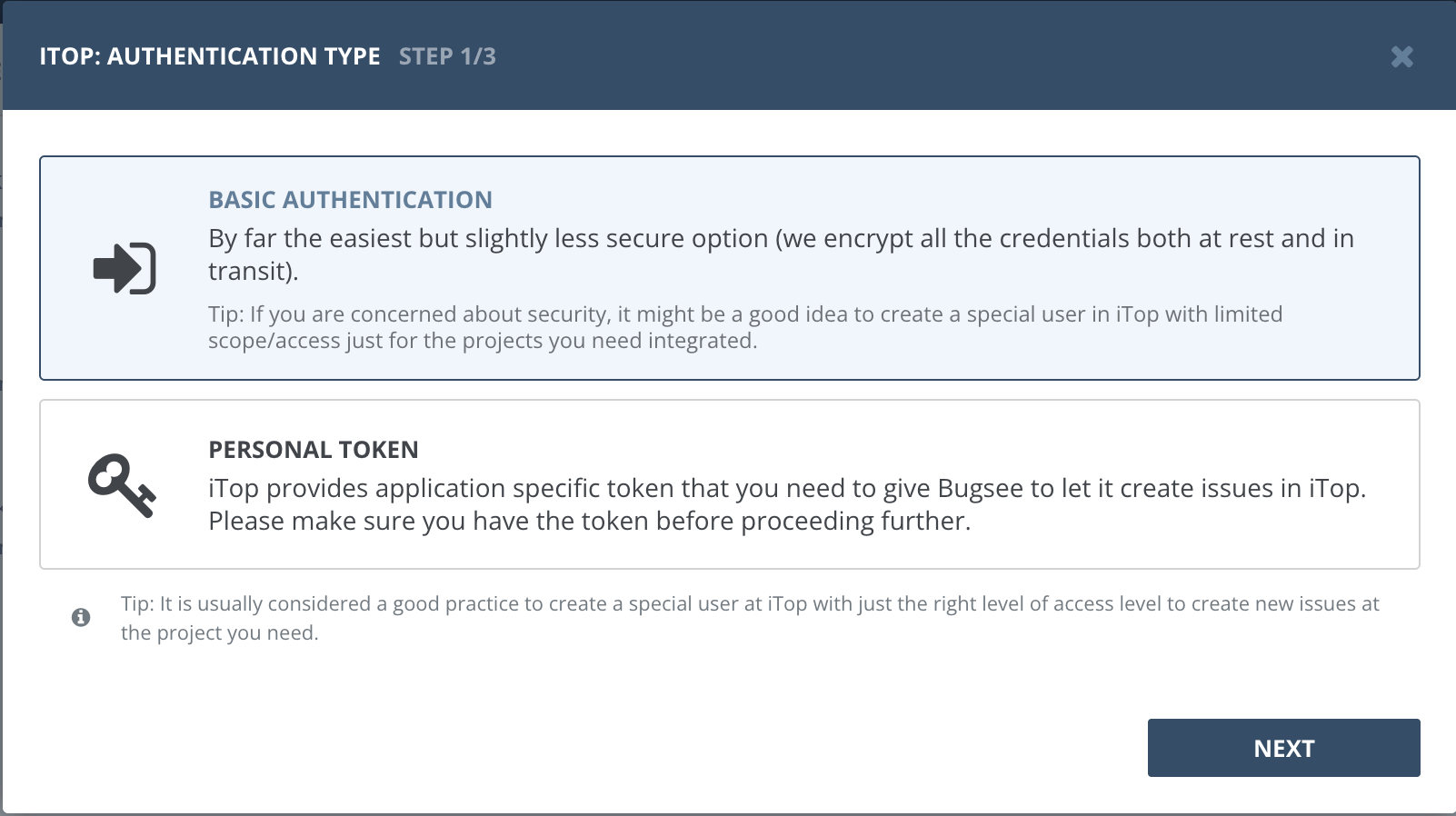
Select "Basic authentication" in the first step of integration wizard. Click "Next".
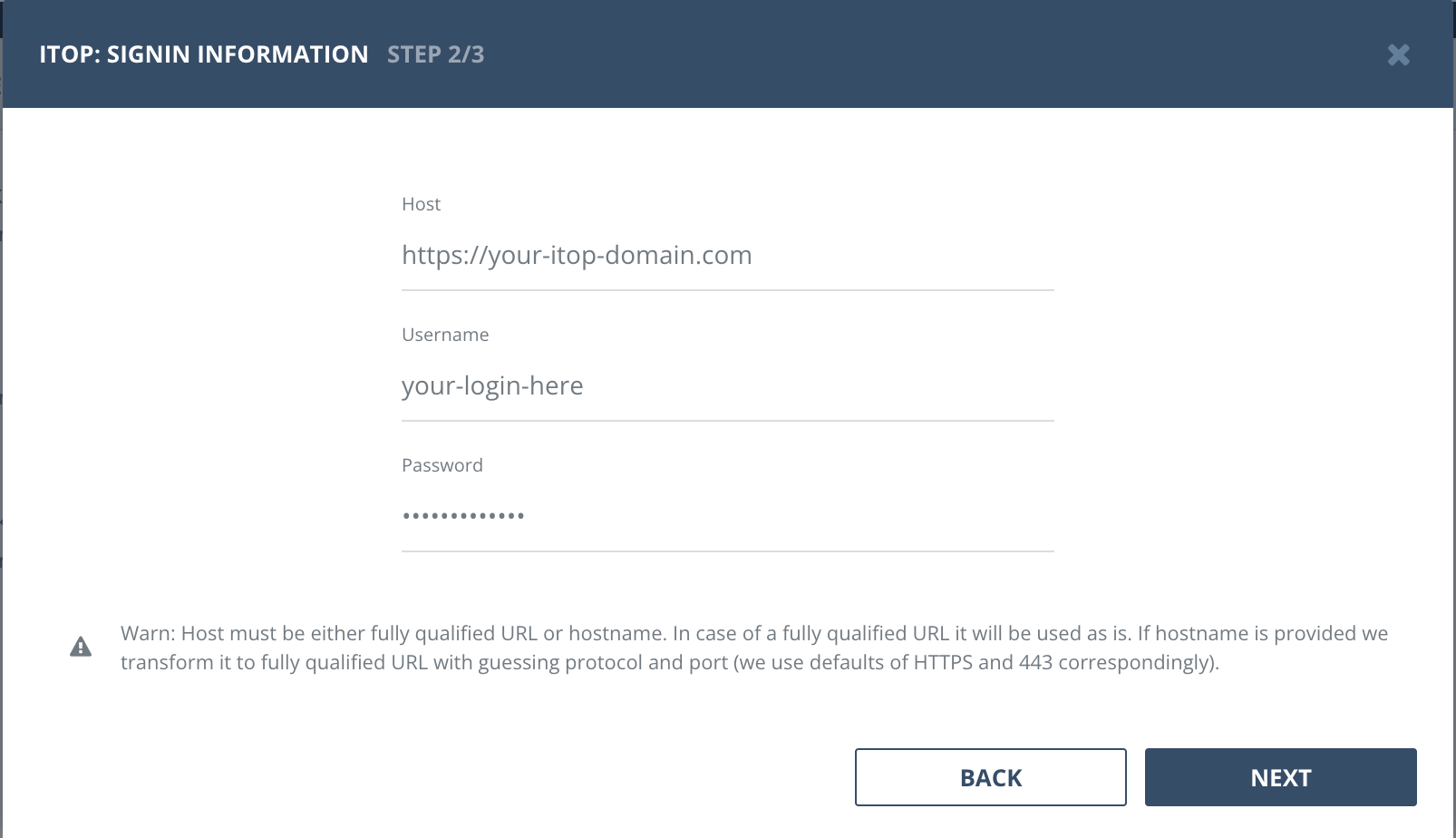
Provide valid host (URL to your iTop instance), username and password. Click "Next".
Personal token
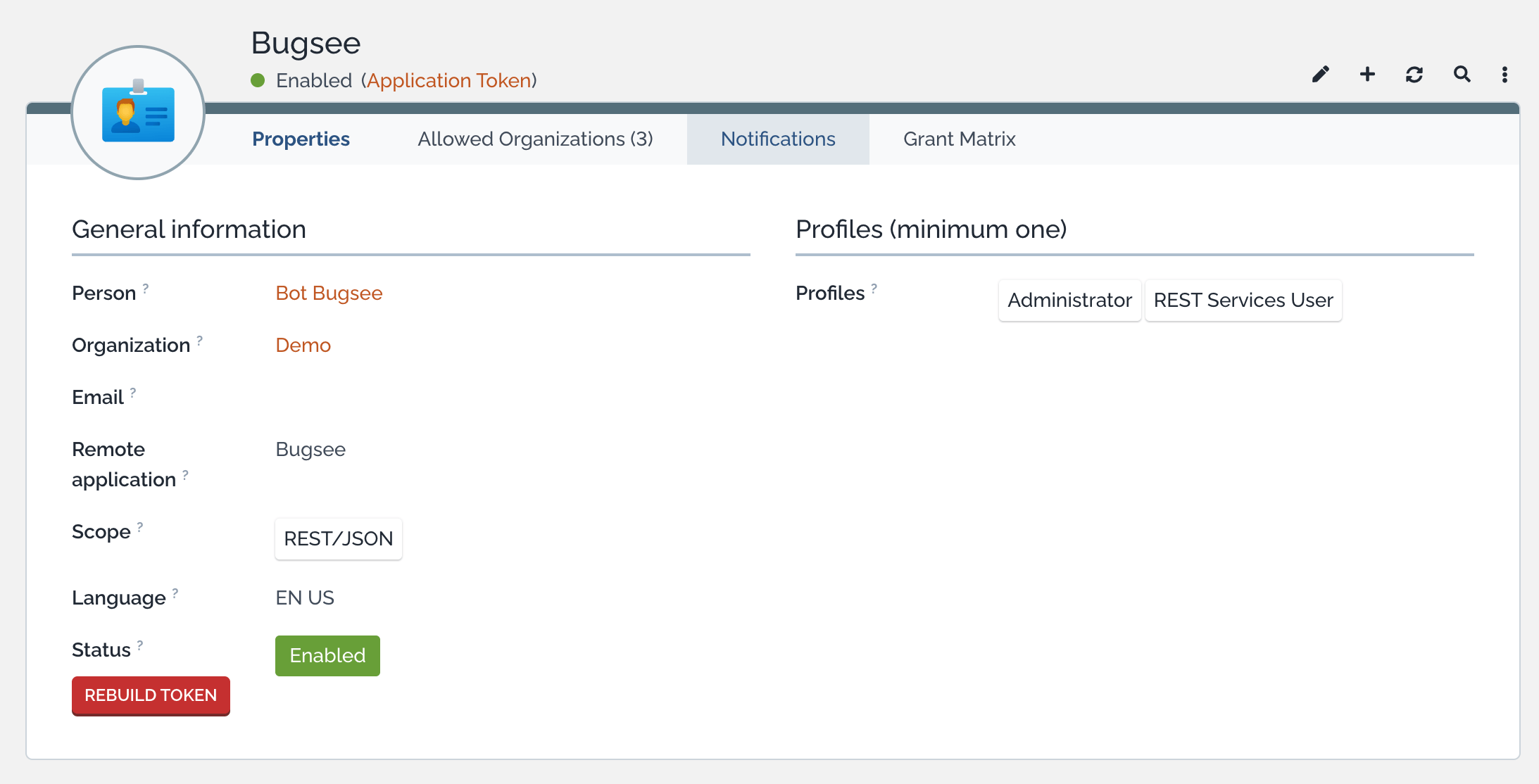
To integrate Bugsee with iTop using a personal token, you need to create an Application Token user with REST API access. Follow the steps below to set it up.
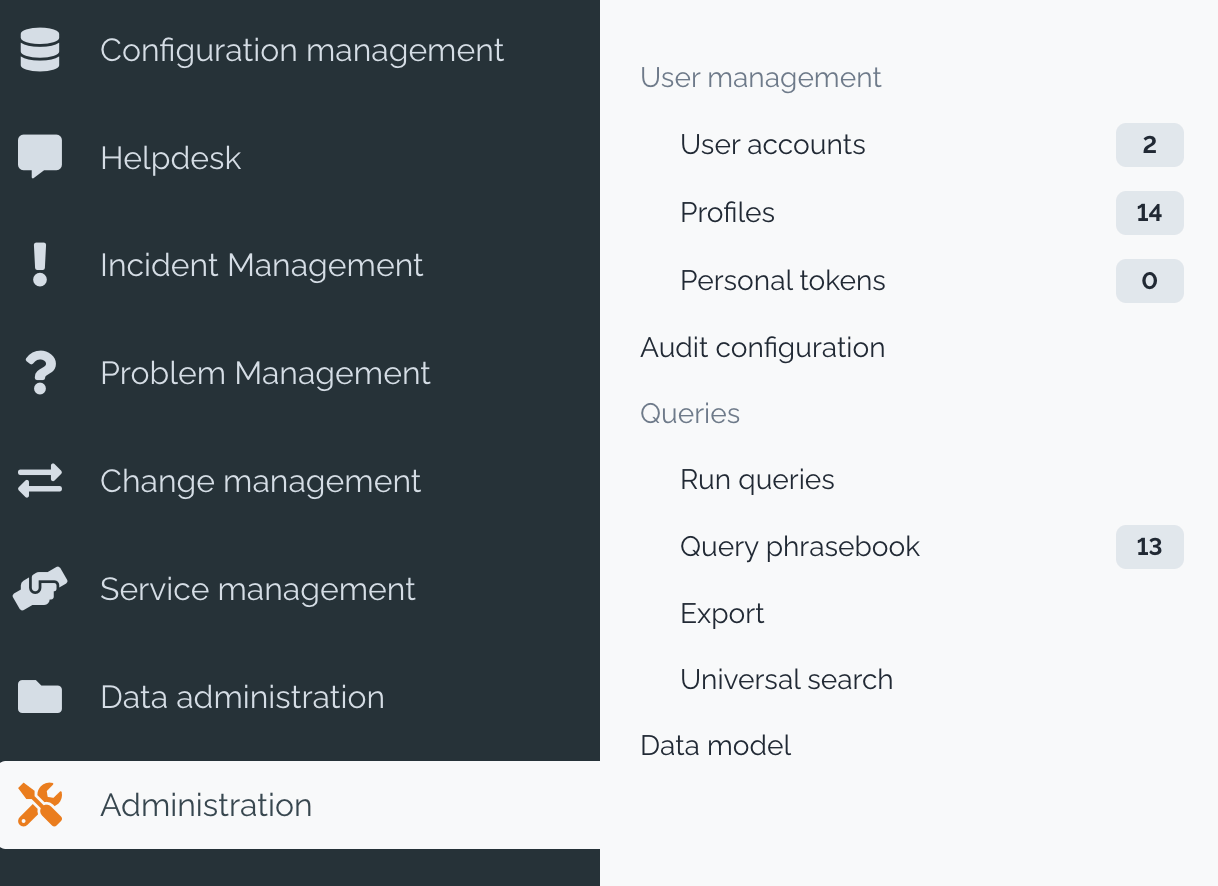
Log into your iTop instance and navigate to "Administration" section. Under "User management", click "User accounts".
In the user accounts list, click the "+" (New) button to create a new user.

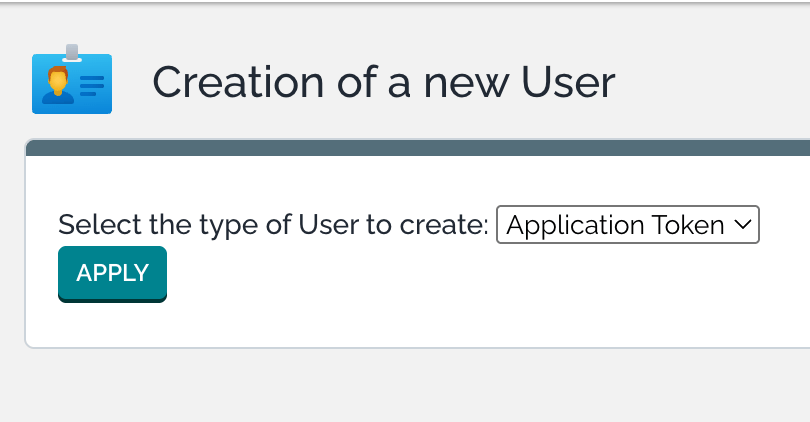
In the "Creation of a new User" dialog, select "Application Token" from the dropdown and click "Apply".
Fill in the token details. Assign the "REST Services User" profile (required for API access) and any additional profiles needed for creating tickets. Set the "Scope" to "REST/JSON" and provide a descriptive name for the "Remote application" field (e.g. "Bugsee"). Make sure the "Status" is set to "Enabled". Save the user and copy the generated token.
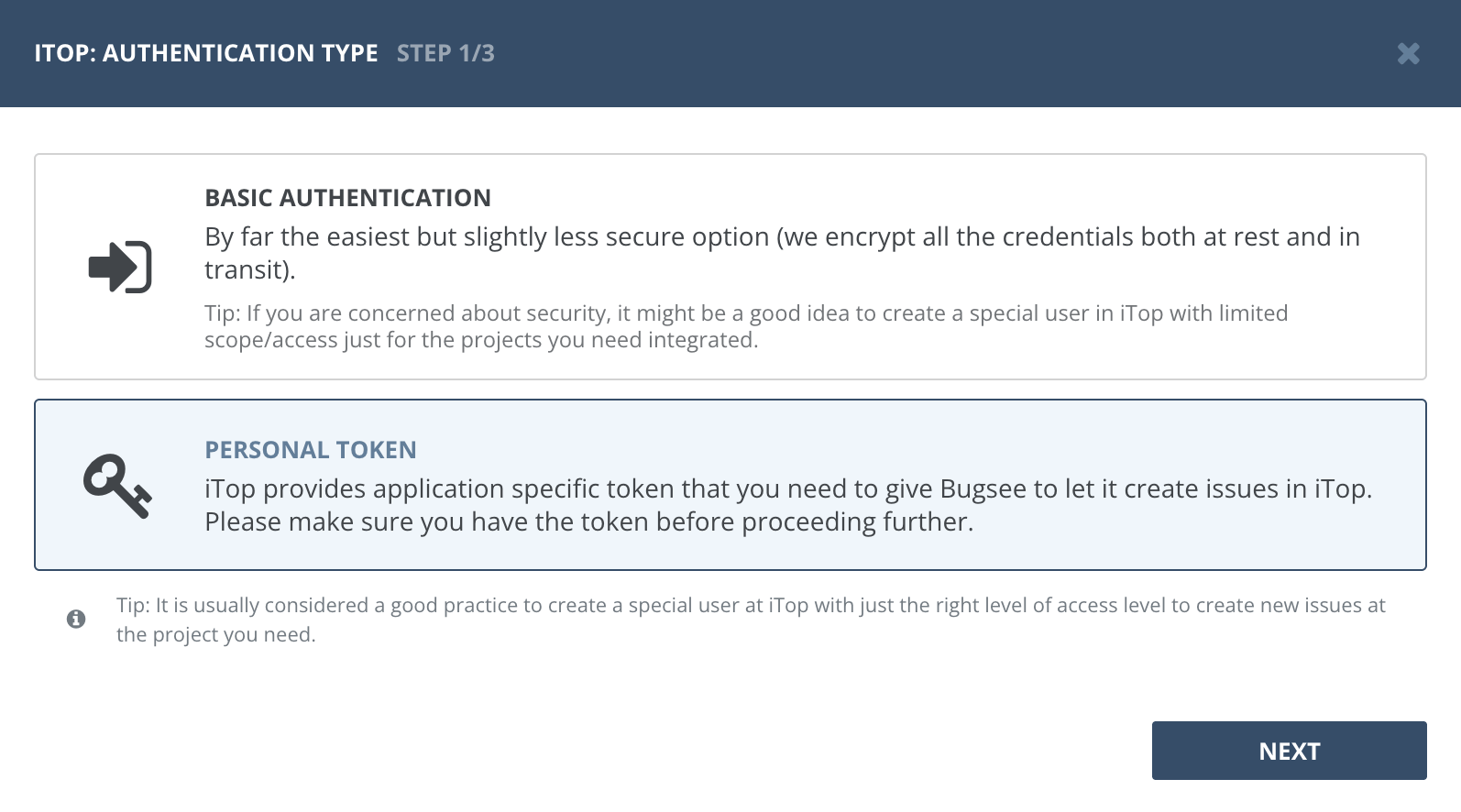
Now, when you've obtained a token, let's configure integration in Bugsee. Select "Personal token" authentication type and click "Next".
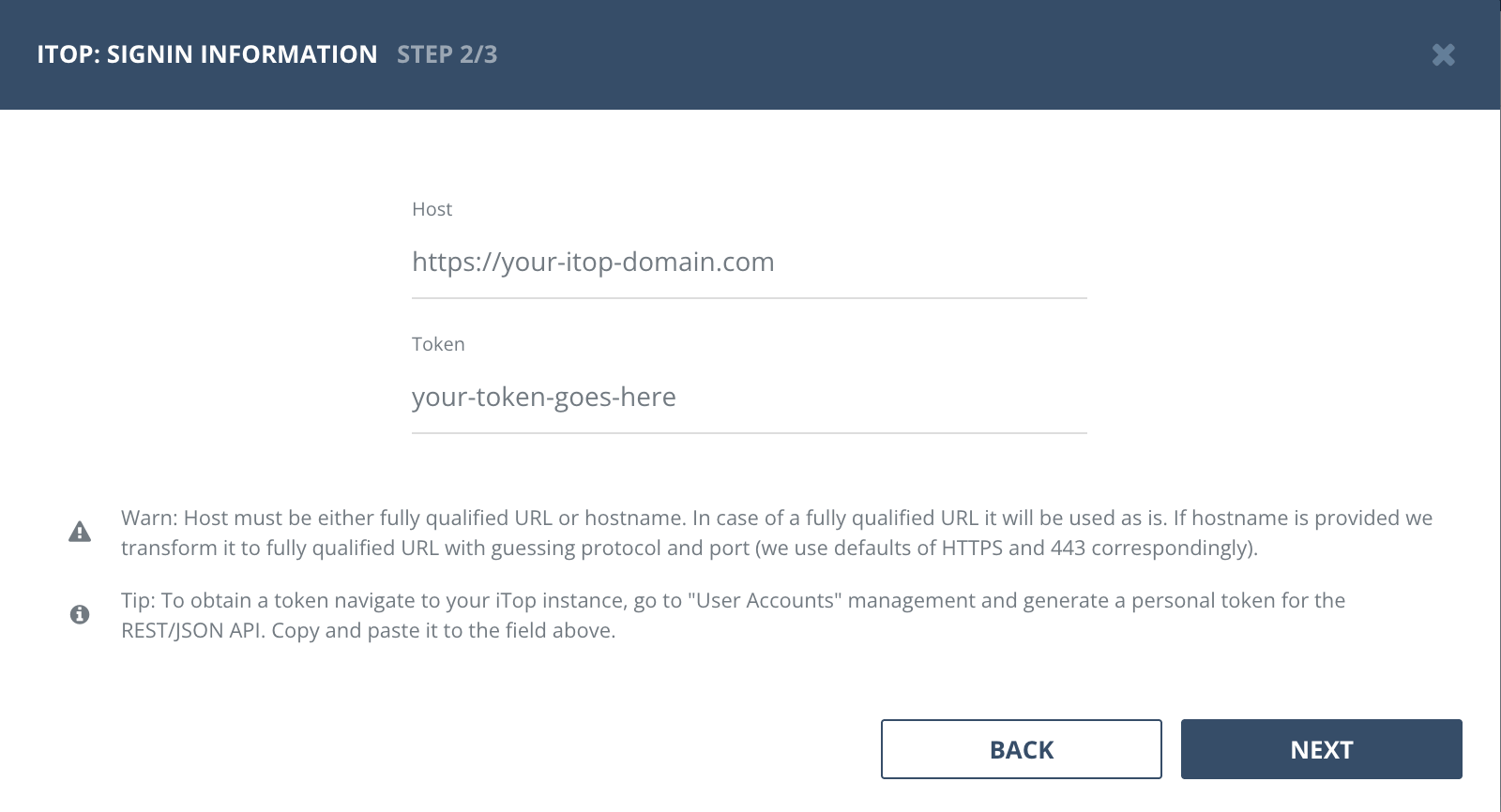
Specify the URL of your iTop instance in the "Host" field and paste the generated token into the "Token" field. Click "Next" to proceed.
Configuration
There are no any specific configuration steps for iTop. Refer to configuration section for description about generic steps.